Make your first sale in 5 minutes
Add a product, then sell it at the POS. Stock goes down by itself.
1. Add a product
Go to Products and select Add product, then Add one product.
Type the name, the selling price and how many you have now.
Select Save.
2. Sell it
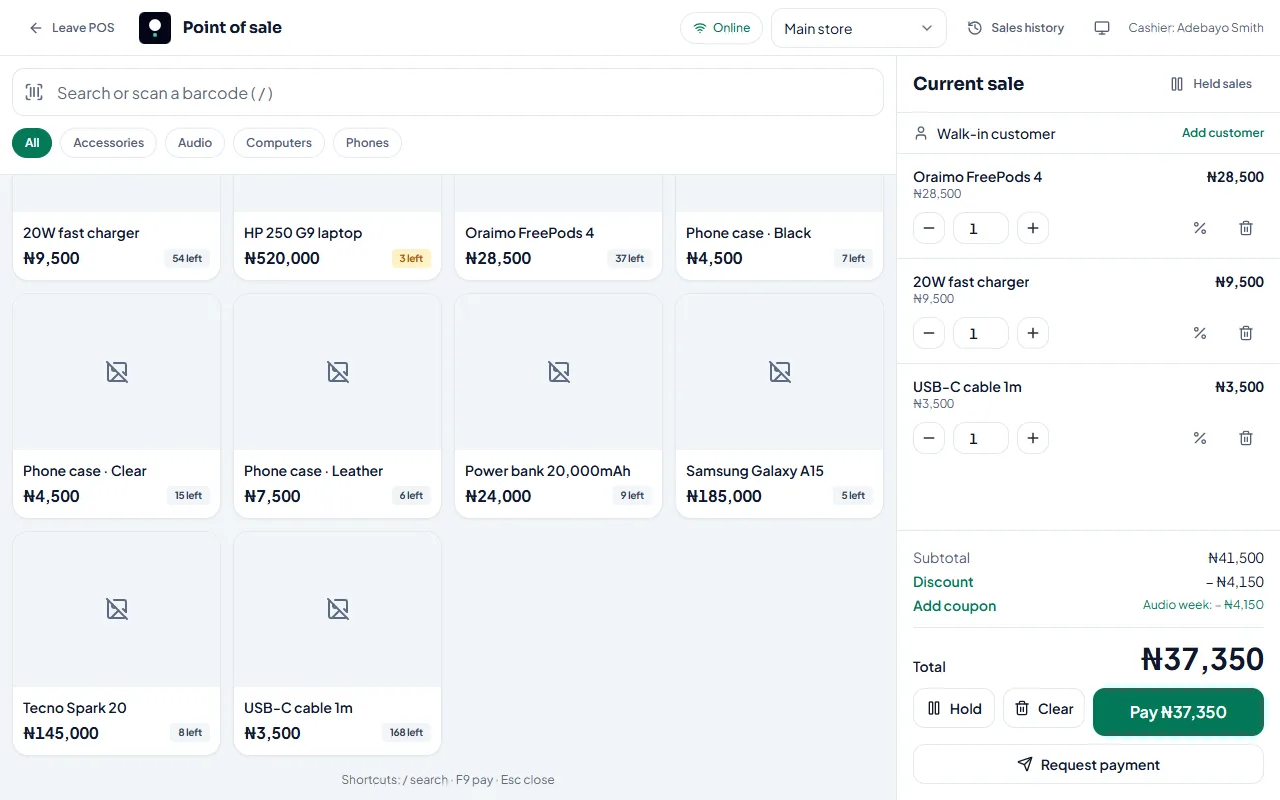
Open POS.
Choose your store if asked.
Tap the product to add it to the cart.
Select Pay, choose how the customer is paying (cash, card, transfer or other), then confirm.
That’s it. The sale is recorded, the stock goes down, and you can print or share the receipt.
Next steps
Related articles
- Add a product Add one product with its price and stock, then add more details whenever you like.
- Sell at the counter with the POS Find or scan products, take payment and complete the sale. Stock goes down by itself.
- Print a receipt Print the receipt after a sale, or reprint it later from Sales history.
- Create your account (email or Google) Sign up with your email and a password, or with your Google account. It’s free to start.