Sell at the counter with the POS
Find or scan products, take payment and complete the sale. Stock goes down by itself.
Open POS.
If asked Which store are you selling from?, choose the store. Sales, stock and receipts are recorded against it.
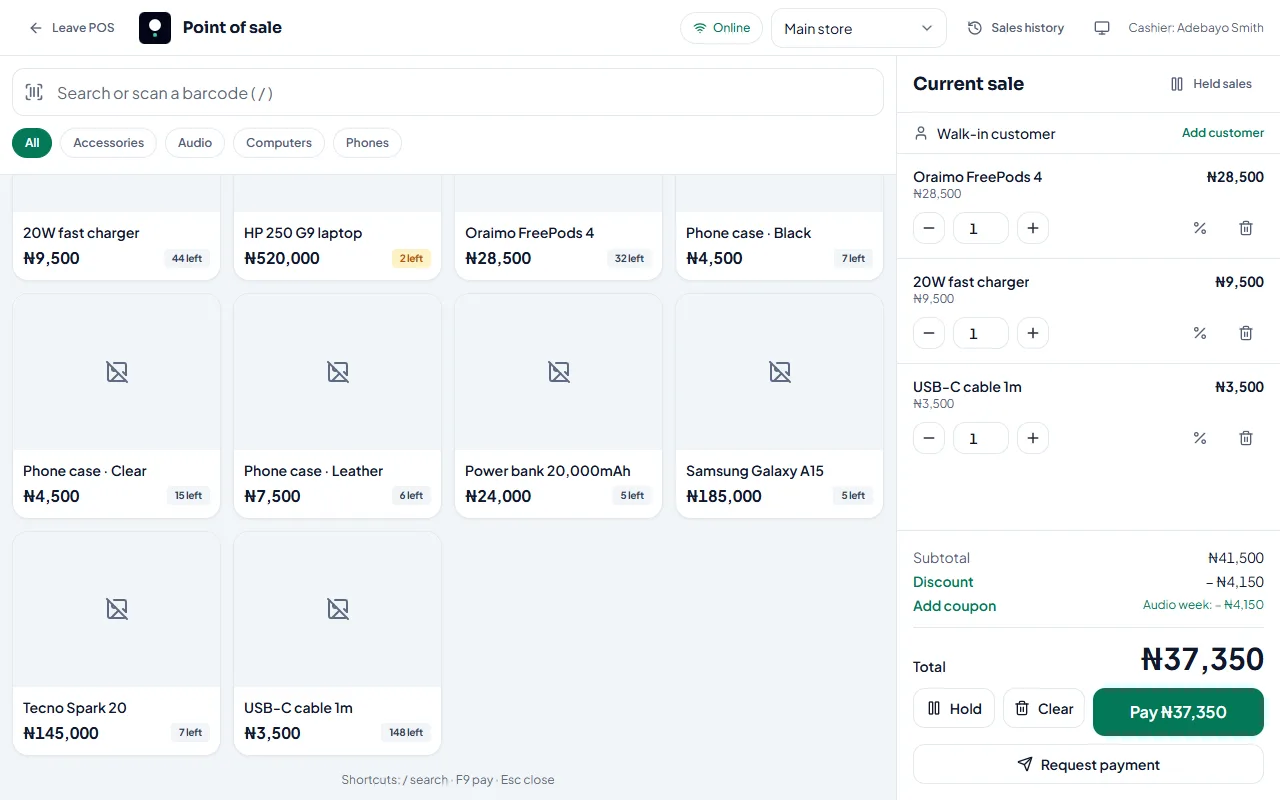
Add products: tap them, search by name, or scan a barcode and press Enter.
In Current sale, change quantities or remove items. On a phone, tap the cart button to open it.
Select Pay.
Choose how the customer is paying and select Complete sale.
You’ll see Sale complete with the receipt number and any change to give. Select Print receipt or New sale.
Hold a sale
Customer gone to get money? Select Hold, add a name or note, and serve the next person. Resume it from Held sales.
Keyboard shortcuts
/ to search, F9 to pay, Esc to close.
Related articles
- Cash, card, transfer and split payments Record how the customer paid, give the right change, and split a payment across methods.
- Give a discount or use a coupon Take an amount or percentage off one item or the whole sale, or apply a coupon code.
- Print a receipt Print the receipt after a sale, or reprint it later from Sales history.
- Make your first sale in 5 minutes Add a product, then sell it at the POS. Stock goes down by itself.