Deactivate or reactivate a store
Close a branch without losing its history. You can reactivate it later.
Stores are never deleted, so their sales and stock history stay intact.
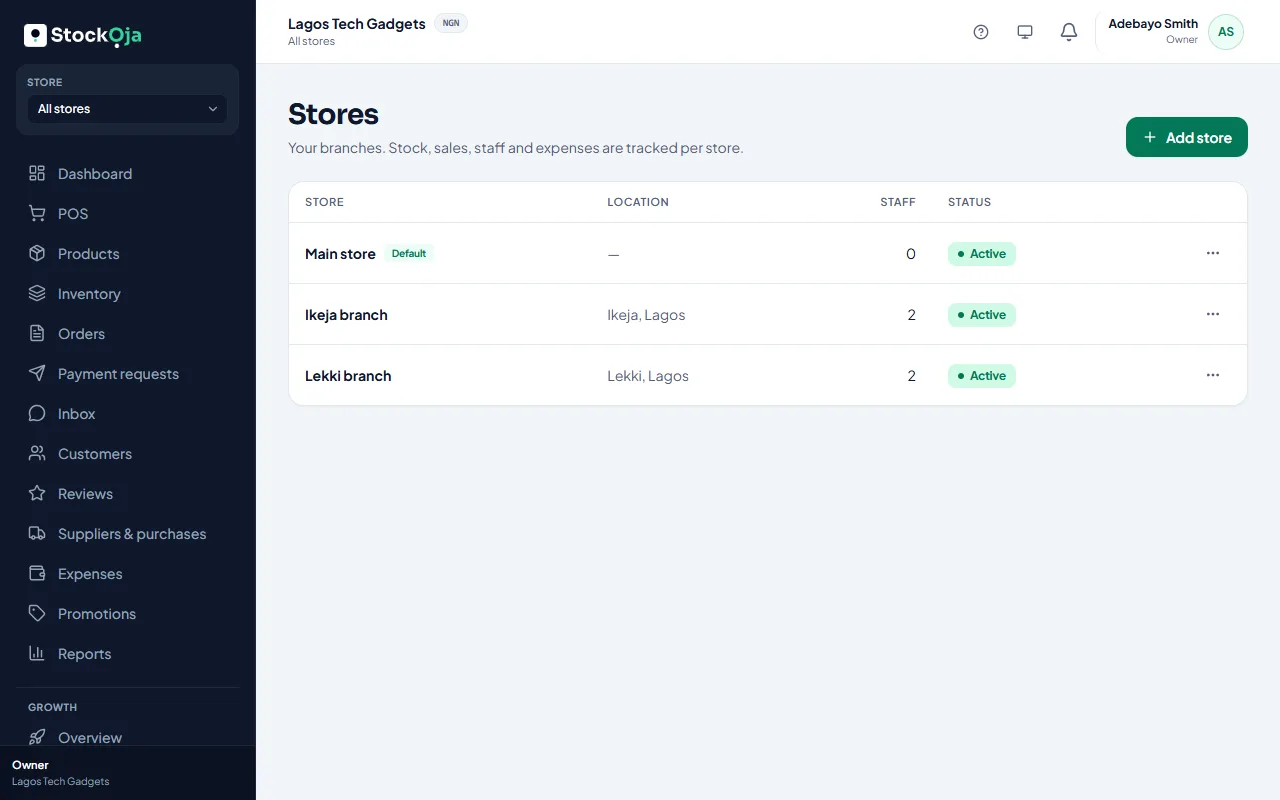
Deactivate
Go to Stores, open the store’s menu and select Deactivate.
Confirm.
When a store is inactive:
Staff assigned only to that store can’t sign in.
It isn’t offered for pickup on your online store.
Its history stays in your reports.
Reactivate
Open the store’s menu and select Reactivate. The store and its staff can work again. It counts toward your plan’s store limit.
Related articles
- Add and manage stores (branches) Each branch has its own stock, sales, staff and expenses.
- What the default store is for Your first store is the default. It’s used when StockỌja needs one store and you haven’t picked one.
- Deactivate or reactivate staff Remove someone’s access without losing their sales history.
- Charge tax (VAT) on sales Turn on tax, set the rate and choose whether your prices already include it.