Transfer stock between stores
Send stock from one branch to another. It arrives when the receiving store accepts it.
Pick the sending store in the store menu.
Go to Inventory → Transfers and select New transfer.
In Send to, choose the receiving store.
Search and add each product with its quantity. You see how many are available.
Add a note for the receiving store if you like.
Select Send transfer.
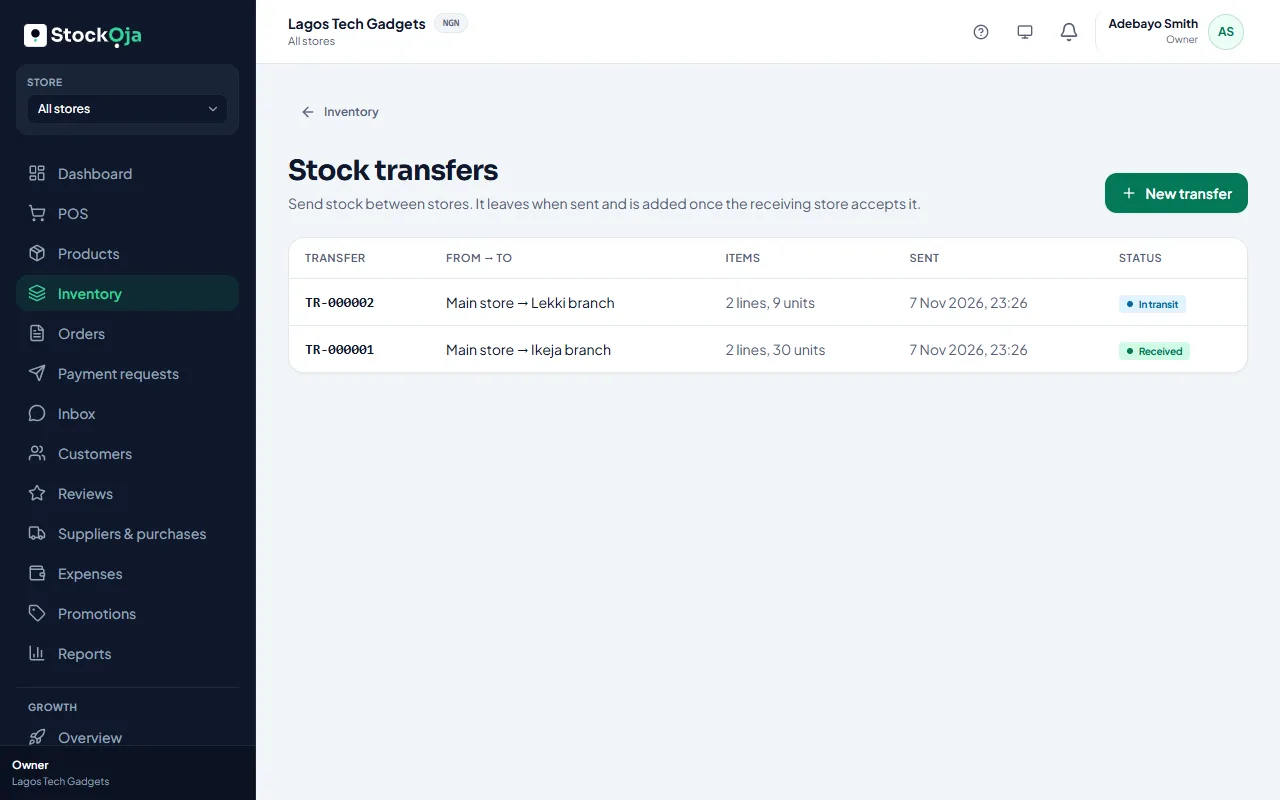
The stock leaves your store straight away and shows as In transit. It’s added to the other store once they receive it.
Cancel a transfer
While it’s in transit, open it and select Cancel transfer. All items go back to the sending store.
Related articles
- Receive or reject an incoming transfer Confirm what arrived. Anything missing goes back to the sending store.
- Add and manage stores (branches) Each branch has its own stock, sales, staff and expenses.
- Cash, card, transfer and split payments Record how the customer paid, give the right change, and split a payment across methods.
- How customers pay online (Paystack) Card and bank transfer through Paystack, paid straight into your bank account.