Adjust stock (and why a reason is required)
Add, remove or set a counted quantity, with a reason that’s kept in the history.
Use an adjustment when stock changes for a reason other than a sale, purchase or transfer.
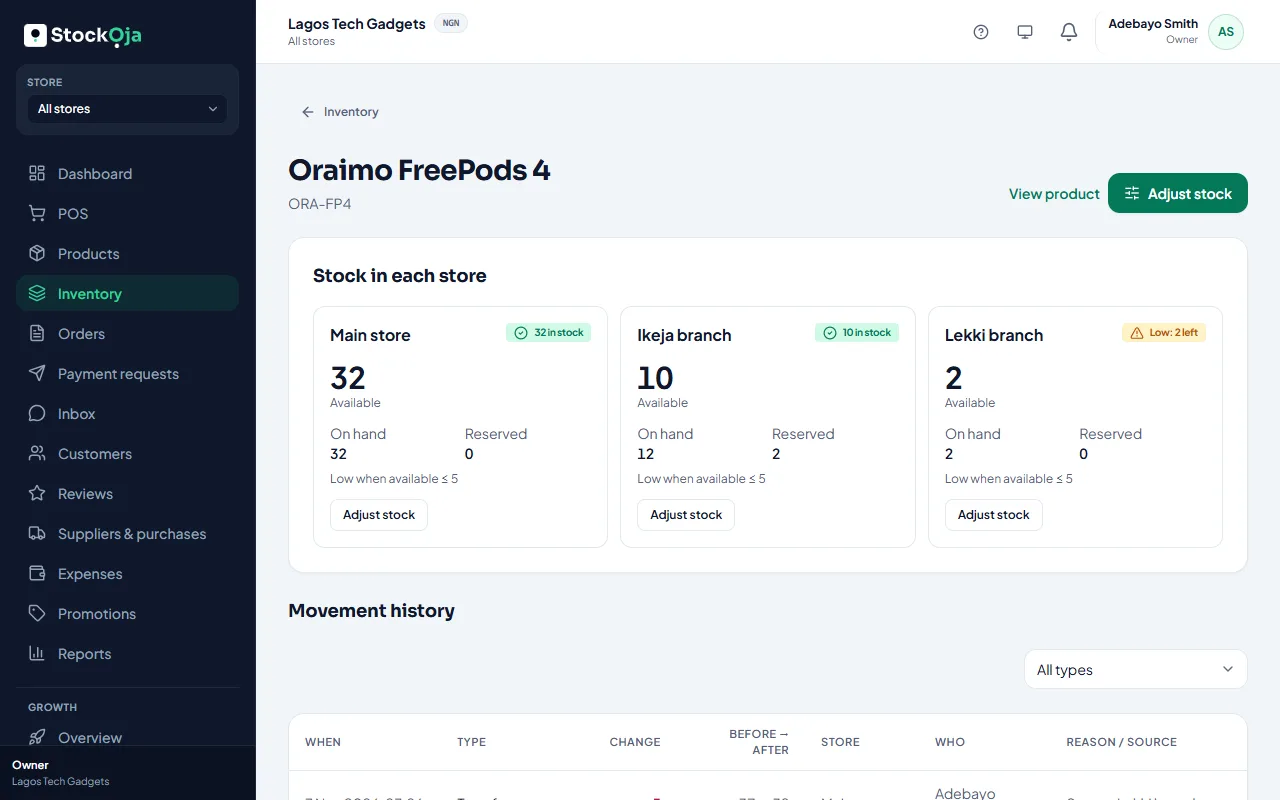
Pick the store in the store menu.
In Inventory, open the product and select Adjust stock.
Choose What happened?:
Add stock
Remove stock
Set counted quantity: you counted, and this is the real number.
Enter the quantity and choose a Reason: Stock count, Damaged, Expired, Lost, Theft, Found, Received (no purchase order), Correction or Other. Add a note if it helps.
Select Review, check the change (“On hand will change from … to …”), then Confirm adjustment.
Why a reason?
Every adjustment is recorded in the stock history with your name, the reason and the time. It can’t be deleted. That way you can always explain a difference, and spot losses.
Received goods from a supplier? Use a purchase order instead, so costs are recorded.
Related articles
- Count your stock and correct differences Do a stock count and record the real numbers with adjustments.
- Stock history for a product Every stock change, with who made it, when and why.
- Check your stock levels See what’s on hand, reserved for online orders and free to sell in each store.
- Low-stock alerts Get warned before you run out, per product and per store.