Track expiry dates and batches
Record expiry dates and batch codes, sell the earliest first, and get alerts before stock expires.
For food, drinks, medicines and cosmetics, you can record the date stock expires.
Add expiry dates
You add a date when stock comes in:
Opening stock on the product form;
Adjust stock when adding stock;
receiving a purchase order: turn on Add expiry dates.
Enter the Expiry date (the last day it can be sold) and, if you like, a Batch or lot code. Leave the date empty for stock that doesn’t expire.
How it’s sold
The earliest date is sold first. Expired stock can’t be sold at the POS or online.
See what’s expiring
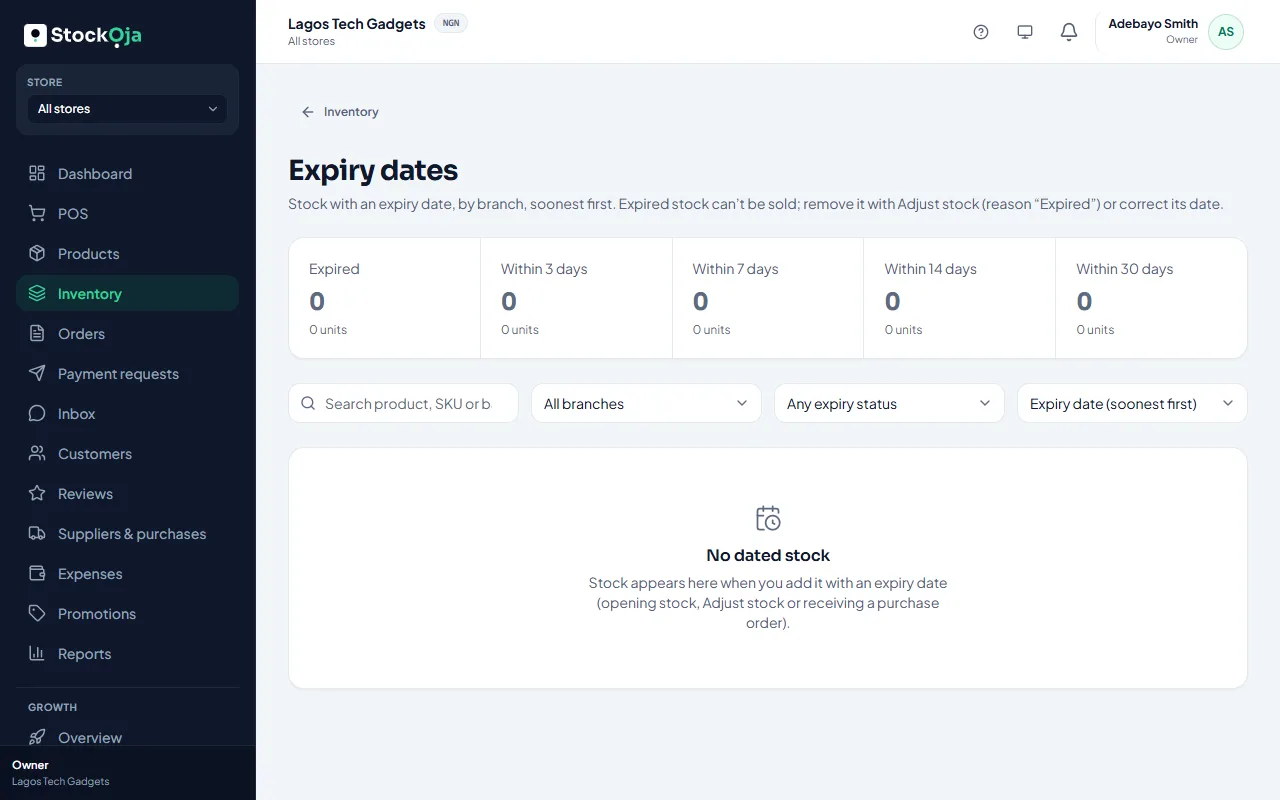
Go to Inventory → Expiry dates. Filter by branch and by status: expired, or expiring within 3, 7, 14 or 30 days. The dashboard also shows Expiring stock.
Remove expired stock
Use Adjust stock, choose Remove stock and the reason Expired. Take from: Automatic removes expired stock first.
Alerts
In Settings → Notifications → Expiry alerts, choose when the team is told: some days before, and when it expires.
Expiry tracking isn’t on every plan. If you don’t see it, check Plan & billing.
Related articles
- Adjust stock (and why a reason is required) Add, remove or set a counted quantity, with a reason that’s kept in the history.
- Receive stock from a purchase order Enter what arrived. Stock is added to the receiving store at the unit cost.
- Choose your notifications Pick in-app, email or push for each kind of notification.
- Check your stock levels See what’s on hand, reserved for online orders and free to sell in each store.