Turn on two-step verification
Add a second check with a code from an authenticator app or your email, so a stolen password isn’t enough.
Two-step verification asks for a 6-digit code as well as your password.
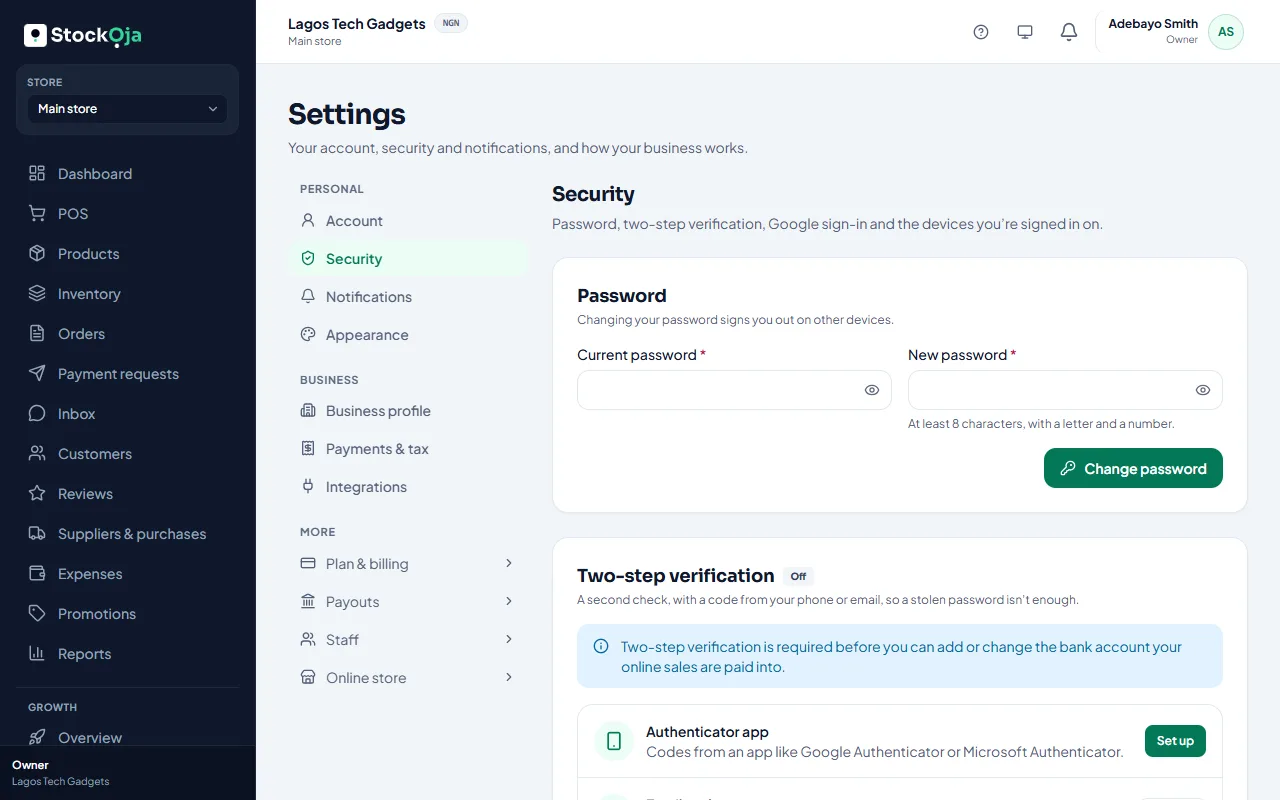
Choose a method
Go to Settings → Security → Two-step verification.
Authenticator app: codes from Google Authenticator, Microsoft Authenticator, Authy or a similar app.
Email code: we email you a code when it’s needed.
Set up an authenticator app
Select Set up next to Authenticator app.
In the app, add a new account and scan the QR code (or type the key shown).
Enter the 6-digit code the app shows.
Save your backup codes: copy or download them, then select I’ve saved them.
Ask for a code at sign-in
Codes are always needed for sensitive changes, such as your payout bank account. To also need a code every time you sign in, turn on Ask for a code when I sign in.
Lost your codes?
Select Get new codes to replace your backup codes. If you can’t get any code, contact support.
Related articles
- Sign in and sign out Sign in with your email and password or with Google, and sign out when you’re done.
- Get paid into your bank account Add the bank account Paystack pays your online sales into.
- Accept an invitation to join a business Open the invitation email, choose a password (or use your existing one) and you’re in.
- Change your name, phone or password Update your profile and password in Settings → Account and Settings → Security.