Automatic messages (workflows)
Switch on ready-made messages: a cart reminder, a welcome, win back, buy again and back in stock for leads.
Workflows are messages that go out by themselves once approved. They go only to people who agreed to hear from you.
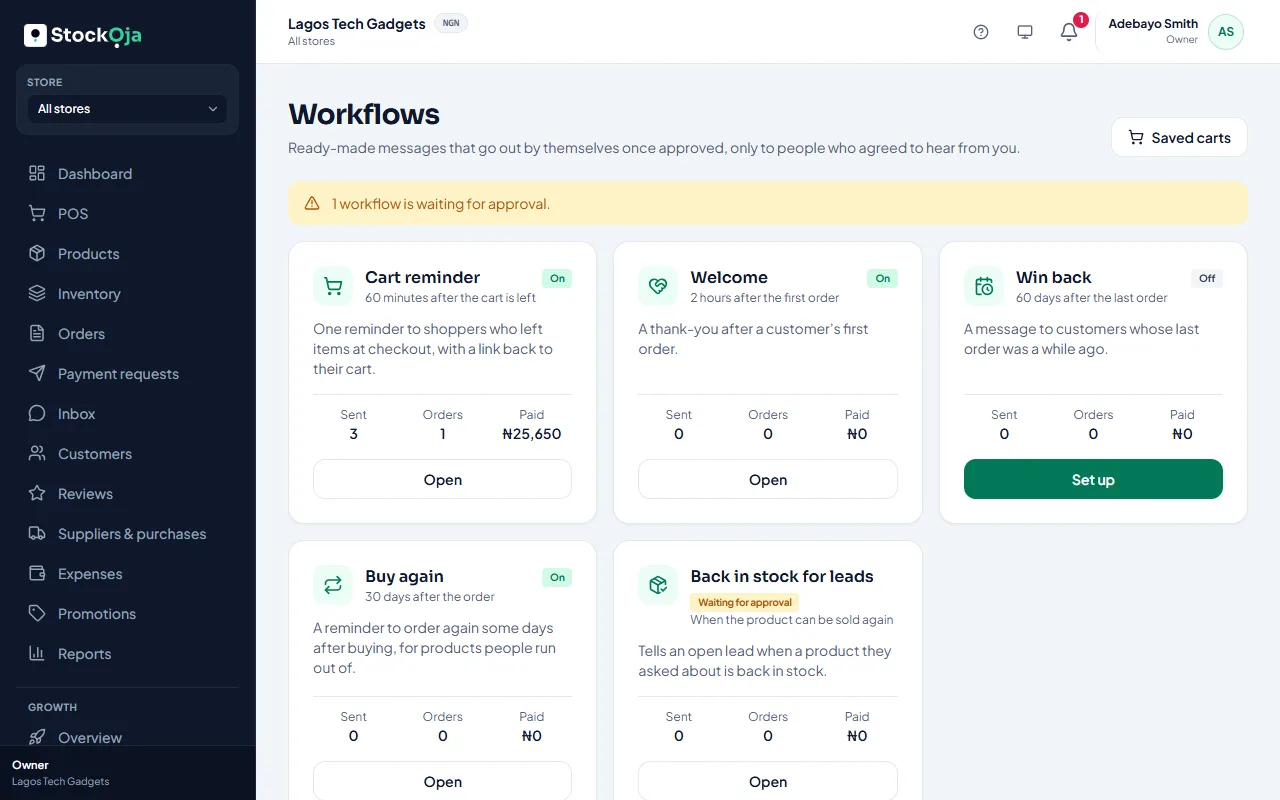
The five workflows
Cart reminder: one reminder to a shopper who left items at checkout, with a link back to their cart. See Saved carts.
Welcome: a thank-you after a customer’s first order.
Win back: a message when a customer’s last order is a set number of days old.
Buy again: a reminder some days after an order. You can limit it to products people run out of.
Back in stock for leads: tells an open lead when a product they asked about can be sold again.
Switch one on
Go to Growth → Workflows and select Set up on a workflow.
Under When it is sent, choose the timing. For Buy again, you can choose Products.
Check the Email subject and the Message. Write {first_name} where the person’s first name should go.
Save, then select Submit for approval.
Someone with approval rights selects Approve and switch on, or Send back.
It only reacts to what happens after it was switched on. Customers from before aren’t messaged.
Email or WhatsApp
Each person gets it by WhatsApp if they agreed to WhatsApp and WhatsApp has approved the message; otherwise by email. Without a connected WhatsApp number, workflows send by email.
Change, pause or check results
Saving any change switches the workflow off until it is approved again.
Pause stops it. Switch on again doesn’t catch up on what happened while it was paused.
Results show the last 30 days: sent, delivered, skipped and the orders it brought. Messages lists each person.
Related articles
- Saved carts and cart reminders See shoppers who left your online store at checkout, and send them one reminder with a link back to their cart.
- Send a campaign Write an email or WhatsApp offer for a segment, get it approved, then see delivery and the orders it brought.
- Record who agreed to hear from you Campaigns and automatic messages only go to people with marketing consent. Record it per channel, with a note.
- What Growth does for your business Leads, a sales pipeline, follow-ups, campaigns and automatic messages, with paid amounts taken from real orders.