Add and import leads
Add a lead by hand, or import contacts from a CSV file. Duplicates are caught for you.
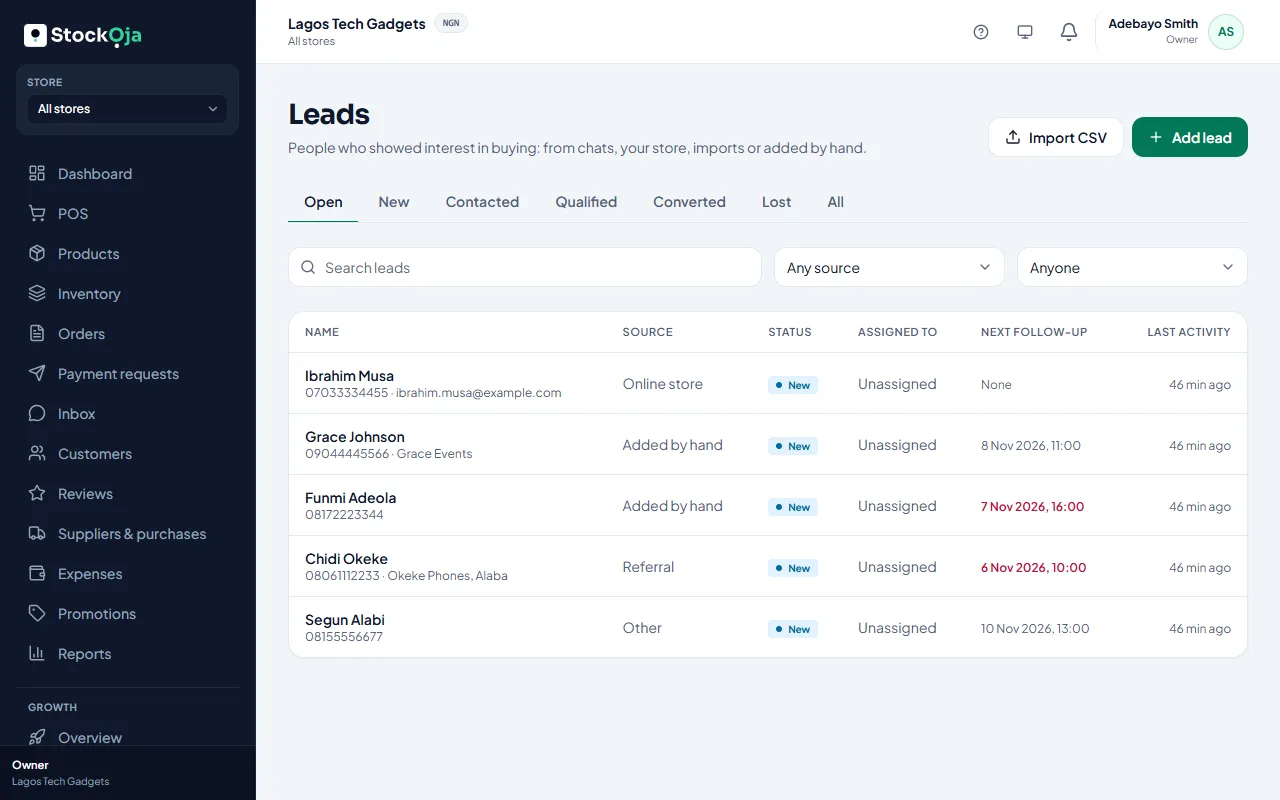
Add a lead
Go to Growth → Leads and select Add lead.
Enter the name and a phone number or an email. Add the company, source, tags and notes if you like.
Add Products they’re interested in from your catalogue.
Save.
Import contacts from a CSV file
In Leads, select Import CSV and choose the file (up to 900 KB). The first row must be the column names.
Each row needs a phone or an email.
Under Match your columns, check which column is the name, phone, email and so on.
Choose what happens When a contact is already an open lead: Skip it or Update it.
Add Tags for every imported lead if you like, such as the event where you met them.
Check the Import summary: new, to update, skipped and rows with problems. Nothing is saved until you confirm.
Select Import.
The number of leads you can add by hand or import depends on your plan. Leads captured from chats don’t count.
Related articles
- Work a lead from new to customer Update the status, add notes, merge duplicates, then make them a customer or mark them lost.
- Export reports to CSV Download a report or your expenses as a CSV file for Excel or your accountant.
- Import products from a spreadsheet (CSV) Upload many products at once from a CSV file made in Excel or Google Sheets.
- What Growth does for your business Leads, a sales pipeline, follow-ups, campaigns and automatic messages, with paid amounts taken from real orders.